hdmi Related Articles
Stay Ahead with Expert Electronics Insights,
Industry Trends, and Innovative Tips
- Electronic Components
- News Room
- General electronic semiconductor
- Components Guide
- Sort by
- Robots
- Transmitters
- Capacitors
- IC Chips
- PCBs
- Connectors
- Amplifiers
- Memory
- LED
- Diodes
- Transistors
- Battery
- Oscillators
- Resistors
- Transceiver
- RFID
- FPGA
- Mosfets
- Sensor
- Motors, Solenoids, Driver Boards/Modules
- Relays
- Optoelectronics
- Power
- Transformer
- Fuse
- Thyristor
- potentiometer
- Development Boards
- RF/IF
- Semiconductor Information
- Sensors
- PCB
- transistor
CatalogⅠ IntroductionⅡ What is USB-C?Ⅲ What is HDMI?Ⅳ USB-C to HDMI InformationⅤ How do USB-C to HDMI Adapters & Cables WorkⅥ How to use USB-C to HDMI Cable?6.1 Preparation6.2 Connect the USB-C plug into your USB-C device6.3 Connect the HDMI end to the display6.4 DoneⅦ HDMI Alt Mode for USB Type-C Connector pageⅧ Why You Should Connect Your USB-C Device to HDMIⅨ Things to Consider When Buying USB-C to HDMI Cable / Adapter9.1 Cable vs adapter9.2 Adapters vs cables9.3 Reliability9.4 Cable length9.5 HDMI Connector Style9.6 Supported Video Resolution9.7 Supported Video Refresh Rate9.8 Available Ports9.9 Compatibility9.10 HDMI VersionⅩ Frequently Asked Questions About USB C to HDMI Ⅰ IntroductionMany laptops and other electronic devices employ USB C connectors, and the trend is for them to have solely USB C as their only type of interface connector. This looks to be a problem when items such as TVs, computer monitors, projectors, and the like only support HDMI, necessitating the need of a means of interface between the two standards. Using a simple cable with a USB-C connector on one end and an HDMI connector on the other is one of the simplest solutions. There are also adapters with a USB-C port on one end and an HDMI cable socket on the other. Ⅱ What is USB-C? USB Type-C, also known as USB-C, is quickly becoming the standard connector for transferring data and power to and from a wide range of computing devices. Its symmetrical design allows it to be placed either way — up or down — removing many of the difficulties associated with previous USB ports and placing it on par with Apple's reversible Lightning plug. This alone makes it a winner in my book. However, USB-C is still evolving toward faster data transfers and the potential to deliver more power to devices. It's also tightly tied to a number of strong new technologies, such as Thunderbolt and USB Power Delivery, which have the potential to revolutionize how we think about our gear and how we operate in the office, on the road, and at home. But there is a downside. USB-C is merely a connector type; it's based on the Universal Serial Bus specification, which is where things become complicated. The four main USB protocols in use today are, to say the least, perplexing, resulting in an alphabet soup of standards that may confuse even the most technically savvy among us. The specifications are as follows: The USB 3.2 Gen 1 protocol is the most widely used USB specification today. It supports a maximum speed of 5Gbps over a single data lane and can use either an old-school Type-A rectangular connection or the oblong USB-C connector. The next step increase in speed is divided into two options: utilization of double speed data lanes that adhere to the former speed limit (USB 3.2 Gen 1 x2) or a single lane that runs at twice the speed (USB 3.2 Gen 2x1). In either case, the peak throughput is 10Gbps. The USB 3.2 Gen 2x2 standard, which uses two channels of double-speed data flow to reach 20Gbps, is the most current iteration. To add to the confusion, the USB 3.2 single-lane protocols are essentially rebranded USB 3.1 protocols, which may still be found on some devices. USB 3.1 Gen 1 is equivalent to USB 3.2 Gen 1, while USB 3.1 Gen 2 is equivalent to USB 3.2 Gen 2x1. Ⅲ What is HDMI? HDMI is a proprietary audio/video interface that transmits uncompressed video data and compressed or uncompressed digital audio data from an HDMI-compliant source device, such as a display controller, to a compatible computer monitor, video projector, digital television, or digital audio device. HDMI is a digital video standard that replaces analog video standards. HDMI adheres to the EIA/CEA-861 standards, which describe video formats and waveforms, the carriage of compressed and uncompressed LPCM audio, auxiliary data, and VESA EDID implementations. HDMI CEA-861 signals are electrically compatible with the Digital Visual Interface CEA-861 signals (DVI). There is no need for signal conversion, and there is no loss of video quality when using a DVI-to-HDMI converter. Consumer Electronics Control (CEC) allows HDMI devices to control each other and allows the user to operate many devices with a single portable remote control device. Since the technology's first debut, other versions of HDMI have been developed and deployed, but all use the same cable and connector. Newer versions contain optional advanced capabilities such as 3D, Ethernet data connection, and CEC extensions, in addition to increased audio and video capacity, performance, resolution, and color schemes. Consumer HDMI products were first manufactured in late 2003. In Europe, either DVI-HDCP or HDMI is included in the HD ready in-store labeling specification for TV sets for HDTV, which was developed in 2005 by EICTA and SES Astra. HDMI first appeared in consumer HDTVs in 2004, followed by camcorders and digital still cameras in 2006. Ⅳ USB-C to HDMI Information To connect a USB C port to an HDMI port, a USB-C to HDMI cable that acts as an adaptor is required. These USB-C to HDMI converter cables are widely accessible and provide a perfect way for laptops and other PCs, among other things, to interface with HDMI-based items such as displays, screens, televisions, and so on. The HDMI Forum, which licenses HDMI technology, decided to build a USB-C to HDMI interface since the USB-C interface is becoming increasingly popular and there is a rising demand to interface to A/V goods such as smartphones, televisions, laptops, and display monitors. Resolutions up to 4K, Audio Return Channel, 3D, HDMI Ethernet Channel, and Consumer Electronic Control are all supported by USB-C to HDMI cables and adapters. Ⅴ How do USB-C to HDMI Adapters & Cables WorkBecause the transmission formats and amount of lines available in USB-C and HDMI are considerably different, the HDMI port must be able to modify its functioning. The HDMI port can use a feature known as HDMI Alternate Mode, or HDMI AM. The cable can interface straight from USB-C to HDMI in this mode. This functionality was added in September 2016, and it enables features up to and including those found in HDMI 1.4b, such as video resolutions up to Ultra HD at 30Hz and Consumer Electronic Control, CEC. Because the connectors for the USB-C connector and the HDMI connector differ, the HDMI port reconfigures the four SuperSpeed differential pairs of the USB-C interface to carry the three HDMI TMDS channels and the clock signal in Alternate Mode. The HDMI Ethernet and Audio Return Channel, as well as the Hot Plug Detect capabilities (HEAC+/Utility pin and HEAC/HPD pin), are carried by the two Sideband Use pins SBU1 and SBU2. The USB-C port then has inadequate pins for the DDC clock, SCL, DDC data, SDA, and CEC. To accommodate these, the three signals are bridged between the HDMI source and sink using the USB Power Delivery 2.0, USB-PD protocol and sent over the USB-C Configuration Channel, CC line. There are a few compromises, as one might expect given that the HDMI Alternate Mode crams the HDMI capability into a smaller number of lines. The first is that the Alternate Mode is based on the older HDMI 1.4b specification rather than the more recent HDMI 2.0b. This means that HDMI Alt Mode for USB-C connections will be able to output up to 4K quality, 3D video, and support HDMI-CEC, but it will not support HDR video or other features introduced in HDMI 2.0b. Ⅵ How to use USB-C to HDMI Cable?6.1 PreparationIt is really simple to use a USB-C to HDMI connection. You only need to take a few steps. 6.2 Connect the USB-C plug into your USB-C deviceConnect the USB-C plug to your tablet, laptop, or smartphone. Check that your host device supports video output, which means the USB-C port must support DP alt Mode! (DP Alt mode: Alternate Mode is a USB Type-C capability that allows video signal transmission.) 6.3 Connect the HDMI end to the displayConnect the HDMI plug to the monitor or screen where you wish the video to be displayed. 6.4 DoneAnd you're finished. Take use of your content on numerous displays. There will be no need for any additional software. Ⅶ HDMI Alt Mode for USB Type-C Connector pageThe HDMI® Alt Mode for USB Type-C TM connector enables HDMI-enabled source devices to connect directly to HDMI-enabled displays via a USB Type-C® connector, delivering HDMI signals and functionality over a single cable without the need for protocol and connector adapters or dongles. This brings together two of the most popular connecting solutions: the tiny form factor, reversible, and multi-purpose USB Type-C connector used by smartphones, tablets, and PC products, and the HDMI connector, which is the dominant display interface with billions of displays installed. Over 355 million HDMI-enabled display devices, including projectors, monitors, VR headsets, and 100% of flat panel TVs, are projected to ship in 2019. HDMI Alt Mode will support the full range of HDMI 1.4b features such as:Resolutions up to 4KSurround soundAudio Return Channel (ARC)3D (4K and HD)HDMI Ethernet Channel (HEC)Consumer Electronic Control (CEC)Deep Color, x.v.Color, and content typesHigh Bandwidth Digital Content Protection (HDCP 1.4 and HDCP 2.2) It is up to manufacturers to decide which HDMI features to support on their USB Type-C products. Ⅷ Why You Should Connect Your USB-C Device to HDMIWith so many options for connecting your phone, tablet, or PC to your TV remotely, why would you invest in a USB-C to HDMI link? Whether you need to mirror portable gaming to your TV or show family and friends your most recent event photos, a USB-C to HDMI connection can basically minimize any lag you might expect from a remote arrangement. Not just that, if your Wi-Fi isn't working or your remote signal is weak, a link implies you can still connect to an HDMI show. Although most brilliant TVs provide a selection of implicit streaming programs, for example, Netflix and Amazon Prime Video, your cell phone can show the same applications through HDMI if your TV does not. Ⅸ Things to Consider When Buying USB-C to HDMI Cable / AdapterBecause the USB-C to HDMI functionality is so convenient, there are numerous vendors on the market producing similar products. This indicates that there is a good selection and that the costs are extremely reasonable. 9.1 Cable vs adapterThere is a wide range of cables and adapters available. Typically, the cable has a USB-C connector on one end and an HDMI socket on the other to connect to HDMI-enabled equipment. The adaptor typically has a USB-C port and a floating HDMI plug. This is then linked to an HDMI wire. These HDMI adapters may be more convenient to use if the HDMI to HDMI cable can be left in place while the adapter is connected to it. The USB-C to HDMI adapters essentially consist of a tiny cable with a female floating socket. Because of their size and weight, they can be relatively easy to transport if an HDMI to HDMI cable is available. USB-C to HDMI cables contain plugs on both ends and will connect the two end points without the use of an additional cable. They are, however, more thick and heavier. 9.2 Adapters vs cablesThere are numerous USB-C to HDMI conversion options available. You can purchase cables with a USB-C connector on one end to connect to your computer and an HDMI connector on the other end to connect straight to the monitor. Another popular solution is to have a USB-C to HDMI adaptor. For this type of transition, a USB-C cable is plugged into the computer, and then an HDMI to HDMI cable is plugged into the adaptor. These adapters might take the form of a small adaptor "box" or a short cable. These can be pretty useful, but they still necessitate the usage of an HDMI connection. Check what you want, how much it will cost, and whether you already have an HDMI to HDMI cable or whether you would need to get one. 9.3 ReliabilityIt is never easy to assess the dependability of anything. However, as in many other cases, you get what you pay for. Having said that, most adapters and cables will function well and give enough service. Obviously, if the USB-C to HDMI cable or converter is frequently used, it is more likely to fail. Lots of connector insertions and cable flexing, especially at vulnerable locations, will shorten the cable's life. The cable's durability will be an important factor in its dependability. The cable quality may be significant in situations where it will be subjected to a lot of wear. Nylon encased cable is becoming more common, and it is reasonably simple to use for manufacturers. Nylon is both cheap and good in protecting wires in a variety of ways. Many folks who want to use these USB-C to HDMI cables on the go may find this to be an option. Another thing to keep an eye out for is the connectors' construction. Aluminium connectors can be more durable than basic plastic connectors, which can shatter more quickly. Consider the overall robustness of the cable assembly, which can be difficult to determine in many cases, especially online. 9.4 Cable lengthThe length is especially crucial if a cable with USB-C on one end and the matching HDMI to connect directly with the monitor, display, screen, etc. is used. Cables are typically one metre, two metres, or the equivalent in feet, so ensure that the cable is the suitable length for the job. It is frequently helpful to run some string between the two items to be connected and then measure the length of this string. Allow for a little more time because distances are frequently longer than you expect. However, there is a fine line between allowing for a little more and having too much that must be neatly coiled away somewhere. 9.5 HDMI Connector StyleAlmost all USB-C to HDMI cables and adapters use a standard type A HDMI connector. However, certain USB-C to HDMI adapters are available with different connector sizes, including regular HDMI, mini-HDMI, and micro-HDMI. This appears to be the best approach for the time being, though there are certain to be some USB-C yo small or micro-HDMI cables somewhere. 9.6 Supported Video ResolutionResolution is an important aspect of any digital information, whether it's a movie, a video clip, or even an image. The resolution is essentially a scale that indicates how much space the digital information takes up on the display panel. As you can expect, the panel's video resolution capabilities must be equal or higher in order to handle the video content. However, this is no longer a major issue because even low-cost monitors and TVs can support 4K resolution or at least a QHD 1440p resolution screen. Even if you use such high-end display devices, you won't obtain the same results if your adapter limits the resolution. We've listed the video quality supported by each of our adapters so you don't have to worry about its compatibility with your setup. 9.7 Supported Video Refresh RateAnother critical component is the refresh rate of the video broadcast. When you play a video game on your display, it is rendered at a specific FPS, or frames per second. These frames are displayed on your screen based on their refresh rate. If your display has a refresh rate of 60 Hz, you will only see 60 FPS even if you are playing the game at a higher FPS. Furthermore, if you include extra components in the equation, such as a USB C to HDMI adapter, you must ensure that the adapter is capable of transferring material at such a high refresh rate. If you do not, you will notice a considerable decrease in video transmission and the video stream will appear more slower and stuttery than on your original display. If you're looking for a USB C to HDMI adapter for gaming, ensure sure it has a refresh rate of at least 60 Hz. However, 30 Hz is plenty for watching movies and TV programmes. 9.8 Available PortsThe USB C to HDMI adapter's available ports are also crucial to its functionality. The input for these adapters will always be a USB C connection. However, depending on the sort of adapter you purchase, there may be a single or several outputs. You can only use your adapter for display connections if it has a single HDMI port or cable connection. However, because many laptops offer USB C as a universal connector for numerous functions, you may want a USB C to HDMI converter with multiple outputs. There are a few premium choices on the market that provide display connection compatibility as well as additional data transfer ports. There are also a few choices for multi-monitor configurations. 9.9 CompatibilityMake sure your USB-C to HDMI cable is compatible with your device before purchasing it. You should also keep in mind that the USB-C port on your device supports DP Alt Mode. DisplayPort Alternate Mode is a useful expansion of the USB-C connector that allows it to connect to another monitor directly. 9.10 HDMI VersionWhen HDMI Alternate Mode was first released, it only supported functionality up to Version 1.4b. As a result, when using a USB-C to HDMI connection or adapter, this should be considered. Ⅹ Frequently Asked Questions About USB C to HDMI1. How many Volt is a USB port?A standard USB 1.0 or 2.0 socket contains four pins, and a USB cable contains four wires. The inside pins convey data (D+ and D-), while the outside pins supply power (5 volts). USB 3.0 ports add an extra row of five pins, resulting in USB 3.0-compatible connections with nine wires. 2. Is a USB port AC or DC power?For charging solely, standard USB devices have a 5 V dc voltage and a current of up to. 5 A or 500 mA. This is what allows them to coexist with your computer's USB ports. Most USB wall adapters will be 5 V adapters with current ratings far in excess of. 3. How do I connect a USB to my computer?Insert the flash drive into your computer's USB port. A USB port should be located on the front, rear, or side of your computer (the location may vary depending on whether you have a desktop or a laptop). A dialog box may display depending on how your machine is configured. If so, choose Open folder to view files. 4. Where is USB port on computer?Most USB ports on desktop computers are located on the rear of the computer casing. In general, you should connect your mouse and keyboard to these ports while leaving the front USB ports free for digital cameras and other devices. 5. How do I connect a USB to my phone?(1)Connect a flash drive (or SD reader with card) to the adapter's full-size USB female end. (2)Connect the USB-C end of the cable to your phone. (3)Swipe down from the top of the screen to see the notification shade. (4)Select USB Drive. (5)To view the files on your phone, tap Internal Storage. 6. How to use a USB C to HDMI adapter?It is simple to use a USB C to HDMI adapter. In fact, it is as simple as inserting the connectors into the appropriate port. Simply connect the adapter to your laptop or any other USB C source, and then connect the adapter to an HDMI TV or monitor using an HDMI cable. Some connectors also have an HDMI output cable, so you won't need an HDMI cable at all. Most importantly, no driver is required to use these adapters. 7. Is there quality loss between USB C and HDMI?When you use an adaptor, you risk losing quality. However, when it comes to USB C to HDMI adapters, the quality is nearly non-existent. The high data transmission rate offered by both USB Type C and HDMI is the primary reason for this. If you choose a premium option, you can even obtain up to 4K resolution output at a refresh rate of 60 Hz, if not higher. As a result, these adapters are perfect for gaming-related applications. 8. Is using an adapter better than a direct connection?As previously stated, there is almost little quality loss in these adapters. As a result, instead of a direct connection, you can use these adapters. However, if your laptop has an HDMI or DisplayPort port, we prefer using a direct connection because it eliminates the need for an additional device between the source and the monitor. Direct connections are also significantly more reliable than adapters because there are fewer chances of loose connections. 9. What are the 5 wires in a USB cable?Red, black, white, and green are the most common hues found on the interior of USB cables. Each of these colors shows whether the wire is for charging or data transfer. Although the traditional wire colors in a USB cable are red, black, white, and green, don't be concerned if your cable does not have these colors. 10. Does a USB cable draw power?When plugged in, USB cables and chargers use very little energy and are safe even when the car is turned off. However, this is dependent on whether a gadget is charging, whether electricity continues to run even when the car is turned off, and how long the car will sit before being restarted.
kynix On 2022-05-19
Catalog IntroductionⅠ What is the Wireless HDMI Transmitter? 1.1 What is the Wireless HDMI Transmitter? 1.2 How do the Wireless HDMI Transmitter and receiver work? 1.3 How to Setup a Wireless Video HDMI Kits?Ⅱ The Best Wireless HDMI Video TransmitterⅢ Wired vs Wireless Video HDMIⅣ Why Use Wireless Video HDMI Ⅴ 9 Advantages to Choose the Wireless HDMIⅥ A Note about 4K Wireless HDMI SystemsⅦ Things to Consider when Buying a Wireless HDMI Video Transmitter Ⅷ Pros and Cons of Replacing HDMI Cables with Wireless Video HDMIⅨ FAQIntroductionHDMI cables connect televisions to source devices like cable boxes, Blu-ray/DVD players, gaming consoles, and other media players. They allow you to send audio or video data from the source device to your television. HDMI is a universally recognized connector for digital home entertainment. This article will go over Wireless HDMI Transmitter and Receiver in greater detail.Ⅰ What is the Wireless HDMI Transmitter?1.1 What is the Wireless HDMI Transmitter?A Wireless HDMI Transmitter eradicates the need for an HDMI cable by sending the HDMI signal over low band frequencies. Wireless HDMI Transmitters perform admirably due to a technology known as "Dynamic Frequency Selection," or DFS. This technology actively monitors the radio frequency spectrum in order to identify and select an available channel. This method selects the best frequency with the least amount of traffic interference for transmitting/receiving the HDMI signal. DFS contributes to the production of a dependable, high-quality HD or 4K signal with only 1 ms of latency; essentially, a blink of the eye. Watch the video below for a two-minute breakdown of how a Wireless HDMI Transmitter works. Wireless HDMI Transmitters transmit audio, but what audio formats are supported? If you want to connect to a Dolby/DTS 5.1 or 7.1 surround sound system, make sure the extender supports the audio formats you're looking for. It's critical to get the right extender for your situation. We have yet to discover a Wireless HDMI Transmitter that supports Dolby Atmos, but we are confident that one is on the way.1.2 How do the Wireless HDMI Transmitter and Receiver Work?The HDMI video transmitter and receiver are two separate devices that work together to perform different functions.Transmitter and ReceiverA wireless data signal stream is transmitted by a transmitter.The data is received by a receiver and then streamed to your television.That's all there is to it.The wireless video HDMI transmitter communicates with the video or audio source device. This is typically a set-top box, Blu-ray player, gaming PlayStation, or other portable media. Following that, the transmitter sends a wireless signal from your source device to the receiver.The receiver is the device that connects to your television. The audio/video data stream is then wirelessly received from the transmitter up to 150 feet away and displayed on the TV. As a consequence, you can have your TV in an extremely separate mode.1.3 How to Setup a Wireless Video HDMI KitsIt's easy to set up a wireless video HDMI kit, such as ScreenBeam's wireless TV. A transmitter is connected to a media source device, and a receiver is connected to your TV or other display. The video stream is then wirelessly transmitted to the receiver by your transmitter.Wireless HDMI Transmitter and Receiver KitsConfiguring the Transmitter:Choose the Source Device (cable box, Blu-ray player, or other media player) from which you want to send a signal to your television.Connect your Source Device to the transmitter with a short HDMI cable.Connect the transmitter's power supply to a power outlet.Installing the Receiver:Connect your HDTV to the receiver with a short HDMI cable.Connect the receiver's power supply to a power outlet.You're ready to stream once all of your devices are turned on and the TV input is set to the appropriate HDMI connection.Ⅱ The Best Wireless HDMI Video TransmitterVideo: the Best Wireless HDMI TransmitterRunning a video cable between the source and the TV (or projector) isn't always feasible or convenient, especially if they're in different rooms. Since many wireless HDMI options can send an AV signal across a single room, we prefer the Iogear GW3DHDKIT Wireless HDMI Digital Kit since it reliably transmits the signal around the house, up to 100 feet, and has much more characteristics than other comparably priced systems.Wireless TransmitterThe Iogear GW3DHDKIT Wireless HDMI Smart Kit is a low-cost, easy-to-use solution for wirelessly transmitting 1080p and 5.1 HDMI video or audio signals across the room or around the house without sacrificing quality. The base unit has two HDMI inputs or one HDMI output, allowing you to connect multiple sources at the same time, and it can be powered via a USB 3.0 port.Ⅲ Wired vs Wireless Video HDMIThe primary distinctions between wired and wireless video HDMI are aesthetics and the ability to position your TV wherever you want in your home or business.Both are capable of transmitting high-quality video and audio (including 4K).Wired HDMI is a wired connection between the media source device and the TV display that uses an HDMI cable. Moreover, messy cables dangling from the TV to the media player can be unsightly in homes or businesses with wall-mounted TVs. Of course, one option is to drill holes in the walls and invest in somewhat costly installations to conceal cables.Wireless Video HDMI uses transmitters and receivers to transmit HD video and audio from a set-top source to a television. The setup is simple, and this method gives you a lot more flexibility in terms of where you can put your TV.Ⅳ Why Use Wireless Video HDMI The main reasons you might need to switch to wireless video HDMI are convenience and the elimination of wire clutter! Typically, the area around your television is littered with dozens of cables running this way and that. This solution aids in the removal of clutter.Locate, locate, locate! Another significant advantage of wireless video HDMI is the ability to send a signal to your TV from a different room than the source, whether it is your Roku box or some other device.Wireless Video HDMI is not really useful at home; it's also useful at the office. In seconds, users could even stream a presentation from the laptop to the conference room projector or TV. Wireless video HDMI has a plethora of applications.Learn about ScreenBeam's MyWirelessTV2, which allows you to place the TV virtually anywhere in the home or business without having to worry about cable clutter.Ⅴ 9 Advantages to Choose the Wireless HDMI1Stream images and videos in 4K HD 3D quality.2It is wireless and does not require Bluetooth.3No need for any APP, just plug and play.4Dual antenna support for 5G high speed. Long signal range of up to 98ft / 30M.5Transmits through walls, floors, and ceilings.6The receiver has HDMI, VGA, and audio ports. can work with external audio.7If you use your phone, you only need to connect with the receiver directly.8Portable and easy to transport while on business.9Can be used extensively in our daily lives for business, home theater, education, games, conferences, and so on. Business Applications: This transmitter and receiver kit can be used as a conference tool to increase meeting efficiency. A 4K transmitter is an excellent option for extending the NFL /MLB/NBA/MLB/Olympic Games...Home Use: Users can stream high-quality pictures/movies/videos to their family/lovers/friends using these wireless HDMI kits.Ⅵ A Note about 4K Wireless HDMI SystemsDVDO and IO Gear, for example, have introduced or announced 4K-capable wireless HDMI systems such as the DVDO Air 4K and the Iogear GW4K30GH60 and GW4K30KIT. At the moment, no 4K-friendly system that we are aware of can wirelessly transmit HDR, and only a select few can support a full 4K/60 signal. We are hesitant to make a selection in this category because these wireless systems cannot provide the full UHD/HDR experience. We still recommend using an 18 Gbps HDMI cable for in-room setups to get the most stable signal; for long-distance UHD/HDR setups, users might consider an HDMI-over-fiber-optic system like this reasonably priced Monoprice option.Ⅶ Things to Consider when Buying a Wireless HDMI Video Transmitter A wireless HDMI video transmitter can be used for a variety of purposes, including newsgathering and covert wireless video links. Here's how to get a good one:PowerMake sure that the production is high and the consumption is low when it comes to power. In fact, look for a transmitter that uses less than 10W of DC power to produce the desired output.Weight, size, and other considerationsLook for a lightweight transmitter that you can use no matter where you are. Furthermore, it must be compact so that it can be carried with you if necessary. Also, make certain that you can use the transmitter in areas with high heat. As a result, it must run cool for obvious reasons.User controlIf necessary, you should be able to change the preset channel locations. In fact, changing other parameters should be possible for you as well. You'll need to find a wireless HD video transmitter with several preset channels as well as a PC GUI for this.ChoosingThere are times when you must choose between standard and infrared cameras. However, you can only do this if the transmitter accepts two video inputs rather than one.Enhanced usabilityIf you want to improve the usability of such applications that require both command and control, you can include an optional transceiver.TransmissionCheck that the wireless HD video transmitter can send video to multiple receivers at the same time.QPSK modulation Search for a transmitter with strong QPSK modulation, especially for digital broadcast radio wireless links in noisy conditions. Ⅷ Pros and Cons of Replacing HDMI Cables with Wireless Video HDMIHDMI cables are used to connect media devices (DVRs, cable boxes, Blu-ray players, gaming consoles, and so on) to television to achieve multimedia content.So you're considering ditching traditional HDMI cables in favor of a wireless video HDMI solution. Before purchasing a wireless video HDMI kit, it is critical to understand what to expect from such a setup, including the benefits and drawbacks. First, the happy news...ProsGet Rid of Cable Clutter. Traditional HDMI cables look cluttered and unappealing. When you use wireless video HDMI, you can create a more organized and simplified environment around your TV. This is essential not only at home but also in the workplace.Quality of the connection. Your wireless video HDMI setup will provide high-quality video. Some kits can produce 1080p60 HD video, while others can produce 4k video. In other words, you can go wireless without having to worry about image or sound quality.Setup and use are simple. Wireless Video HDMI is simple to set up. Connect a transmitter to your media player and a receiver to your television.Wireless Video HDMI allows you to place your media device and TV wherever you want. Set up your Blu-ray player in one room and place your TV anywhere within a 150-foot range. Without such limitations of HDMI cables, this could be on a media stand or a wall mount.There is no need for a home Wi-Fi network. Wireless video HDMI, like an HDMI cable, does not demand a home Wi-Fi network, so if your internet goes down, you will still be able to access all of your devices.ConsConnection Quality. How can this be both a pro and a con? Depending on your circumstances, some variables can lower the quality of your connection. Often these wireless video HDMI kits get a range of 100 to 150 feet. Going beyond that range, or through more than two or three walls or floors, can reduce the connection's quality. Floors and walls made of brick, cement, metal, or stone can also degrade quality.Wireless connectivity is a low-cost investment. Wireless Video HDMI transmitter and receiver kits can cost up to $150. It is crucial to decide whether the pros listed above provide the value you seek.Wireless Video HDMI kits, such as MyWirelessTV2, are available from a variety of online retailers, including eBay and Amazon.Ⅸ FAQ1. Are wireless HDMI transmitters any good?Most common wireless HDMI transmitters can send Full HD 1080p video quality. However, as wireless technology develops, like new Wi-Fi protocols and 5G, you can expect higher quality video to be available. As a matter of fact, some makers now offer 4K video quality transmission with their wireless HDMI extender.2. What's the difference between transmitter and receiver?Simply put, the main difference between a transmitter and a receiver is that a transmitter gathers and decodes information and the receiver displays the information in an audible and/or visual form that consumers can view or listen to. The most well-known and oldest of inventions to use this system is the radio.3. How do I connect my wireless receiver to my TV?In order to connect your TV to your receiver, simply connect an audio output port from your TV to an auxiliary input port on your home stereo receiver. When you turn on your TV, also turn on your stereo receiver and select that auxiliary input and you can enjoy improved sound.4. How do I connect my HDMI receiver to my TV?Make sure that the TV and receiver are connected using an HDMI cable. Connect the cable to the HDMI port that is labeled ARC or the port identified in your manual that supports ARC. Turn on the Control for HDMI setting on both the TV and the receiver or home theater system.5. What is electronic receiver?Receiver, in electronics, any of various devices that accept signals, such as radio waves, and convert them (frequently with amplification) into a useful form.6. How can I get signal on my TV?Reset the boxTurn everything off at the wall.Check that all cables are securely and firmly in place.Wait for 60 seconds.Plug your TV box (not the television set) in and turn it on.Wait another 60 seconds, or until the lights on the TV box have stopped flashing.Plug everything else back in and turn it all back on.7. Why is my TV not picking up any channels?First check that your TV is set to the correct Source or Input, try changing the Source or Input to AV, TV, Digital TV or DTV if you haven't already. If your “No Signal” message is not due to incorrect Source or Input being selected, then it's most likely caused by a set up or antenna fault.8. How do you fix a TV that says weak or no signal?Reset the TV boxPower off the TV box.Detach the power cable from the back of the unit, and from the wall outlet or power bar.Wait 30 seconds and then reconnect the power cable to the unit and the power source.Wait up to 2 minutes for the TV box to reboot.Power on your TV box and test it again.9. What causes a weak cable signal?A weak or inconsistent cable TV signal usually indicates that something is wrong with the wiring or the signal itself. Depending on where the problem is, you might be able to fix the problem, or you might have to contact the cable provider to improve the cable TV signal strength.10. How do I split HDMI to multiple TVs?
kynix On 2022-01-14
IntroductionⅠ What is a Wireless Transmitter?Ⅱ How to Make a Transmitter and Receiver Ⅲ Wireless Transmitter vs Wireless Receiver 3.1 Wireless Transmitter 3.2 Wireless Receiver 3.3 What are Optical Transmitters and Receivers? 3.4 How do You Use a Wireless Transmitter? Ⅳ Transmitter Specifications Ⅴ The Types of Transmitter Based on Modulation Scheme and Conversion Technique Employed 5.1 AM Transmitter 5.2 FM Transmitter 5.3 SSB Transmitter 5.4 Direct Conversion Transmitter 5.5 Super Heterodyne TransmitterⅥ Smart Wireless Transmitters 6.1 What are Smart Transmitters? 6.2 What are the Main Features of Smart Transmitters?Ⅶ 5 Tips to Optimize Your Sennheiser Wireless System 7.1 Don’t Cover the Antenna 7.2 Fresh Batteries are Essential 7.3 Frequency Selection is Important When Using Multiple Systems 7.4 Maintain Line of Sight between Components 7.5 Keep Transmitters and Receivers as Close as PossibleⅧ Answers to 6 Questions about the Wireless TransmitterIntroduction A wireless transmitter is a telecommunications device that generates radio waves in order to broadcast or transfer data via an antenna.This article on the transmitter specs, usage, and other parts of a full introduction will allow you to have a more detailed grasp of the wireless transmitter.Ⅰ What is a Wireless Transmitter?A wireless transmitter and associated receiver are required for devices that communicate data without the use of cables. The transmitter converts the audio signal to a radio signal and broadcasts it via an antenna as a radio wave. The antenna may protrude from the transmitter's bottom or be hidden within the transmitter. Government rules regulate the strength of radio transmission. Depending on the conditions and signal quality, the signal can successfully go up to 1,000 feet. There are two types of transmitters available. A "body-pack" or "belt-pack" transmitter, for example, is a compact box the size of a deck of cards (or smaller in some cases). The transmitter is worn on the body or clipped to the user's belt. A body-pack transmitter is commonly hooked to a guitar strap or attached directly to an instrument such as a trumpet or saxophone for instrument applications. The transmitter is incorporated into the handle of a portable wireless microphone, resulting in a wireless microphone that is just slightly larger than a normal wired microphone. For handheld wireless microphones, a range of microphone elements or "heads" are usually offered. A battery (typically a 9-volt alkaline type) is required to run all wireless transmitters.Figure-1 A wireless routerA router with an integrated wireless transmitter and receiver is included in the home or office wireless local area network (WLAN). Most routers also include a modem, allowing a single, high-speed Internet account to be shared by all connected computers. Instead of using Ethernet cables to connect the computers, each has a wireless network card (or wireless adapter) that has its own transmitter and receiver on board. Now, for instance, an individual computer can send a data request to the router, and the router can receive the request, forward it to the appropriate party, and then send the return response.Ⅱ How to Make a Transmitter and ReceiverThe Video Shows: How to make a transmitter and receiveMake your very own transmitter and receiver! Ⅲ Wireless Transmitter vs Wireless Receiver3.1 Wireless TransmitterThe radio's transmitter is powered by an alternating current flowing through a conductor (in this case an antenna). The alternating current changes direction very quickly, frequently millions or billions of times per second. The energy contained in such a fastly alternating current can be converted into Electromagnetic (EM) radiation. Electrons flowing as current produce electromagnetic radiation in the form of photons (energy packets).The resulting waves are sinusoidal, but their amplitude and frequency can be altered through modulation.3.2 Wireless ReceiverReceivers operate in the inverse of how transmitters do.The incident radio waves generate a tiny alternating current in the receiver's antenna (the photons impart their energy onto the electrons in the wire, resulting in the current). An alternating current is generated because EM waves oscillate). This alternating current signal is routed to the receiver's input.It's vital to recognize that when you tune a radio, you're selecting a frequency to listen to. To get the clearest signal, set your radio to the circuit's resonant frequency.' This is determined by the components used.3.3 What are Optical Transmitters and Receivers?The optical fiber communication system consists primarily of a transmitter and receiver, with the transmitter located on one end of a fiber cable and the receiver located on the other end of the cable. The majority of systems make use of a transceiver, which is a module that includes both a transmitter and a receiver. The transmitter receives an electrical signal and converts it to an optical signal using an LED or laser diode.Figure-2 Fiber-optic-data-linkA connector connects the light signal from the transmitter end to the fiber cable, which is then broadcasted through the cable. The light signal from the fiber end can be connected to a receiver, and wherever a detector converts the light signal to an electrical signal, it is conditioned appropriately for use by the receiving equipment.3.4 How do You Use a Wireless Transmitter?An electromagnetic disturbance is a radio wave. It spreads out in the same way that ripples in water do.First, the current flows through a wire. The wire is then surrounded by an electromagnetic field.This can be used by transmitters. They can send a pulse of electricity through a copper antenna.Furthermore, one end of the antenna will be grounded. This will restrict the signal to a single pulse.Metal effectively traps any radio waves that come into contact with it because it is a conductor of both electricity and magnetism. As a result, large metal objects in the home, such as a refrigerator, will interfere with the Wi-Fi signal. The radio waves will then emit in a regular pattern, much like ripples. The frequency of the emission will be measured in hertz (Hz).Transmitters create a carrier frequency, which is then mixed with the data signal and broadcast. This signal will be received by the receiver, which will then divide the two frequencies into their individual portions.Ⅳ Transmitter Specifications1DC coupled LEDs are used.2A serial port is Max232 IC Driver. 3The wavelength of the source is 660nm. 4The data rate is 1 Mbps.5The highest input voltage is +5V.6The maximum supply current is 100 mA. 7The maximum input voltage is +5V.8The supply voltage is +15V DC.9The LED driver is on board IC Driver.10The interface connectors are 2mm sockets. 11The type of input signal is digital data. Ⅴ The Types of Transmitter Based on Modulation Scheme and Conversion Technique Employed The following are the different types of transmitters based on the modulation scheme and conversion technique used.5.1 AM TransmitterFigure-3 Typical block diagram of AM transmitter systemThe frequency range of an AM radio system is 540 to 1700kHz, with an IF of around 455 kHz. The frequencies are separated by 10 kHz.To convert audio information into an AM modulated signal, an AM transmitter employs amplitude modulation. AM modulation employs audio as the modulating signal and a high-frequency signal as the carrier. To achieve AM modulated output, the amplitude of the carrier signal is varied by the amplitude of the modulating audio signal.5.2 FM Transmitter Figure-4 FM transmitter system block diagramFM radio systems operate in the frequency range of 88 to 108 MHz, with an IF of approximately 10.7 MHz. To convert audio information into an FM modulated signal, an FM transmitter employs frequency modulation. FM modulation makes use of audio as the modulating signal (Fm) and a high-frequency signal as the carrier. To achieve FM modulated output, the frequency of the carrier signal (Fc) is varied in accordance with the amplitude of the modulating audio signal.5.3 SSB Transmitter Figure-5 SSB transmitter block diagramThe upper and lower sidebands are transmitted by the AM transmitter. The upper band represents the sum of Fc and Fm, while the lower band represents the difference between Fc and Fm. A single-sideband (either upper or lower) is transmitted by an SSB transmitter, not both. In comparison to an AM transmitter, an SSB transmitter saves bandwidth and power.5.4 Direct Conversion TransmitterLet's take a look at how a direct conversion transmitter works. The signal constellation produced by this transmitter type is known as QPSK, which stands for Quadrature Phase Shift Keying.The first bit of digital data to be transmitted is divided into I and Q signals.The I and Q signals are processed by DACs.Low pass filtering is used to feed the output of DACs to mixers.The architecture employs LO (local oscillator). Before the mixing process, the LO signal is phase-shifted by 90 degrees to one of the mixers.The mixed I and Q components are added together to produce a QPSK modulated signal.Before transmission into the air, the QPSK modulated signal is amplified using a PA (Power Amplifier).Figure-6 Direct conversion transmitter5.5 Super Heterodyne TransmitterFigure-7 Superheterodyne-transmitterAfter obtaining a modulated signal via direct conversion transmitter, this architecture employs one more mixing component. The signal is bandpass filtered both before and after mixing. This necessitates the inclusion of one more LO (Local Oscillator) in the design. This type, like other transmitter systems, employs PA (Power Amplification) prior to transmission. With the help of gain control, AGC is used to vary the amplitude of the output signal. AGC stands for Automatic Gain Control.Ⅵ Smart Wireless Transmitters6.1 What are Smart Transmitters?Smart transmitters are controlled by a microprocessor. They also include an in-built sensor. The sensor enables a transmitter to filter the surrounding atmosphere. Furthermore, the transmitters can store data in memory. You can program transmitters to retain a default setting using memory storage.6.2 What are the Main Features of Smart Wireless Transmitters?The following are the key features of OMNI's smart wireless transmitters:Multiple sensors can be added for varying measurement changes.The transmitter is then adjusted to produce linear results.The transmitters are self-calibration capable.The transmitters can self-diagnose. They are capable of detecting faults and maintenance alerts.Ⅶ 5 Tips to Optimize Your Sennheiser Wireless SystemFor years, Sweetwater has configured and used large-scale Sennheiser wireless microphone systems. There are some simple steps you can take to get the most out of your Sennheiser wireless system in terms of channel count, range, and sound quality.7.1 Don’t Cover the AntennaThe antenna on a transmitter should never be covered for optimal performance. When using a handheld microphone, take care not to cover the antenna with your hand. If you don't see an antenna on your microphone, it's most likely hidden inside the last few inches of its body. Hold the microphone closer to its head/capsule to avoid covering it with your hand as you pick it up.Figure-8 Don't cover the antennaWhen wearing a belt pack with an external antenna, make sure the antenna isn't wadded up or bent. This is not only bad for the antenna (bending a wire enough times will cause it to break), but it also severely reduces its transmission. With a wadded-up antenna, you'll get limited range and more dropouts.7.2 Fresh Batteries are EssentialFigure-9 BatterySignal strength and operational range decrease when the transmitter's battery expires, so even if the battery isn't fully dead, it's better to change it at the start of every performance, event, or service.7.3 Frequency Selection is Important When Using Multiple SystemsFigure-10 Frequency SelectionTo avoid interfering with each other, the frequencies of numerous wireless systems must be properly synchronized. It's not always enough to have distinct frequencies. Using wireless systems from the same manufacturer and series is usually the best way to do this — Sennheiser's wireless systems automatically use frequencies that are already pre-coordinated to avoid interference. Consult an expert if you're integrating systems from various manufacturers or series.7.4 Maintain Line of Sight between ComponentsImproper antenna installation is the most prevalent cause of signal losses. Between the antennas and the transmitters, there should always be a clear line of sight. If this isn't possible in your rack, the antennas should be put distant from the receivers, perhaps on a wall, on a balcony rail, from the ceiling, or somewhere else where line-of-sight placement is possible.Figure-11 Maintain line of sight between componentsKeep in mind that the human body is a great RF energy absorber. Your wireless transmitter is unlikely to have enough "oomph" to carry an entire audience of people on their feet. If your antennae are in the rear of the room, the pastor's back, which requires the signal to pass through his body on its way to the receiver, may not be the best place for the belt pack transmitter.7.5 Keep Transmitters and Receivers as Close as PossibleIf you're having trouble getting clear reception, consider placing the receivers closer to the stage to shorten the distance between the transmitters and receivers. If that isn't possible, consider moving the antennae closer together by mounting them remotely. If you need to run long antenna cables, don't skimp on quality to save money — obtain the lowest-loss cable you can find. It is suggested that you use RG-8. If the cable line is longer than 25 feet, an antenna booster may be required, and it's time to contact a professional.Ⅷ Answers to 6 Questions about the Wireless Transmitter1. What is a transmitter in a wireless system?A wireless system consists of two main components: a transmitter, and a receiver. The transmitter handles the conversion of the audio signal into a radio signal and broadcasts it as a radio wave via an antenna. The antenna may stick out from the bottom of the transmitter or it may be concealed inside.2. How do I connect Bluetooth kit to FM transmitter?Simply turn on the Bluetooth on your cellphone. Or whichever device you plan on using. And search for the t-ten. And just connect the t10 and and just like that is paired.3. Can any transmitter work with any receiver?You can use a transmitter with any receiver. BUT you have to have a way of changing the antenna when you transmit. There are antenna relays for this purpose that will automatically make the change for you. The power of the transmitter would quickly destroy your receiver.4. What are the main features of transmitter?What are the main features of a transmitter? Explanation: Some of the main features which make the transmitter complex are higher clock speed, higher transmit power, directional antennas and need for a linear amplifier.5. Is transmitter is same as sender?What's the difference between sender and transmitter here. Many times both terms are used for the same thing. Could it be here "Sender und Sendegeraet"? The HFN values in the sender and the transmitter are different,i.e. the HFN synchronization between the sender and receiver is lost.6. What is perfect transmitter?The important feature of the transmitter is extremely fast current, turn-off time, less than 1 μs for the shallowest depth, while the current after the ramp time is practically absent. douwdek0 and 6 more users found this answer helpful.
kynix On 2022-01-07
Join our mailing list!
Be the first to know about new products, special offers, and more.
Feature Posts
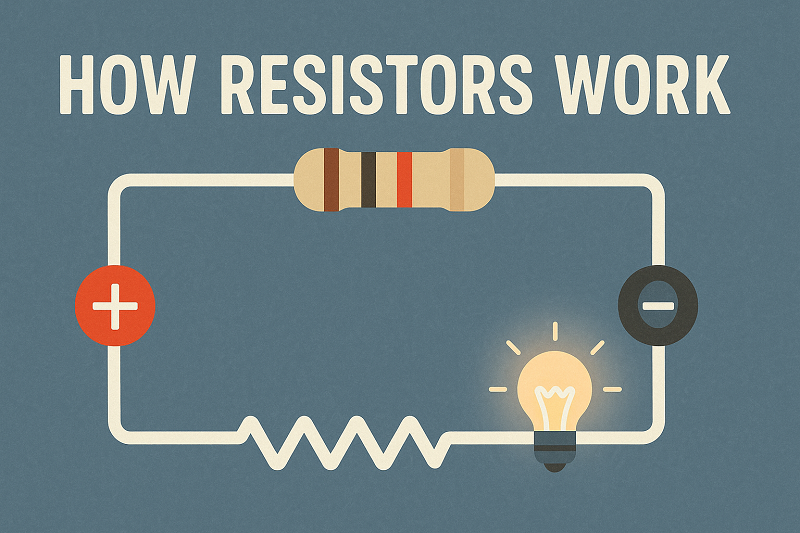
How Resistors Work: From Basic Principles to Advanced Applications2025-07-30
DC Switching Regulators: Principles, Selection, and Applications2025-05-30
FPGA vs CPLD: In-depth Analysis of Architecture, Performance and Application2025-05-07
MOSFET Technology: Essential Guide to Working Principles & Applications2025-05-04
SMD Resistor: Types, Applications, and Selection Guide2025-04-30