info@kynix.com
 00852-6915 1330


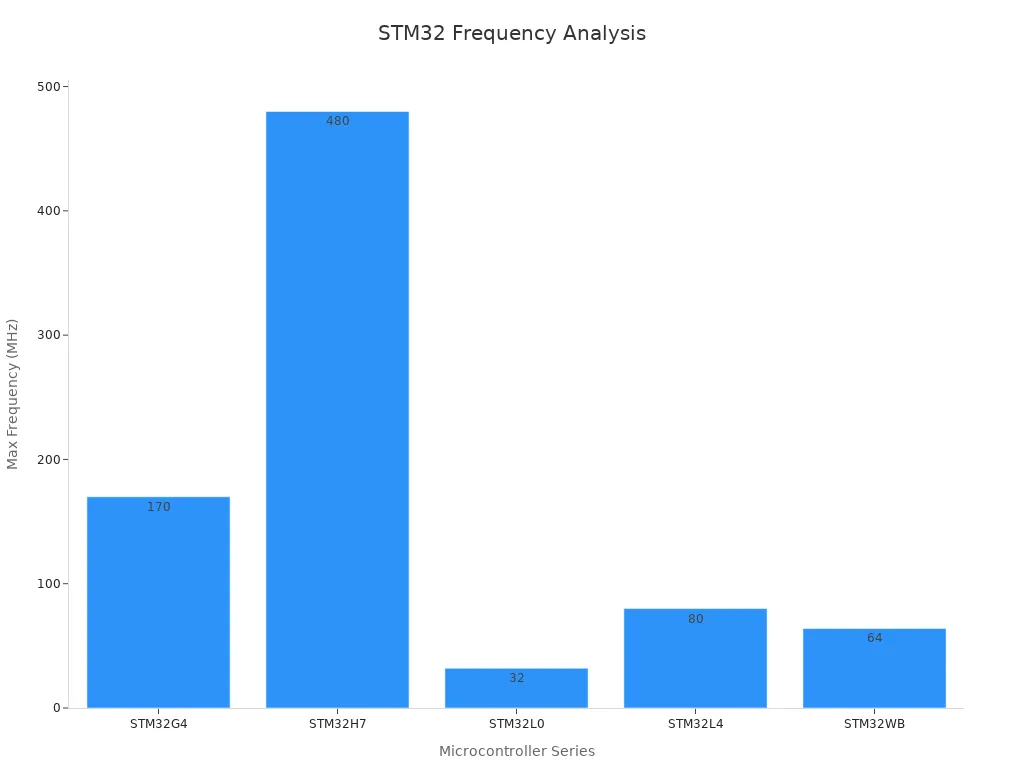


STM32F103C8T6 remains a familiar choice for control boards, instruments, industrial interfaces and embedded products built around a 48-pin Arm Cortex-M3 MCU. When the original device is difficult to source for a particular production window, designers often search for an STM32F103C8T6 alternative with a similar memory profile and peripheral set. The names that appear most often are GD32F103C8T6, APM32F103C8T6, CH32F103C8T6 and MM32F103CBT6.This Kynix comparison explains where those devices look similar, where their documented specifications differ and what an engineering team should validate before approving a vendor change. In our reviewed inquiry activity, interest in STMicroelectronics products increased, while STM32F103C8T6 continued to attract repeated sourcing attention. That is a directional observation from our own inquiry flow, not a measure of global demand, shortage levels or market-wide availability.ContentsQuick answerSTM32F103C8T6 baselineAlternative comparison tableGD32F103C8T6 comparisonAPM32F103C8T6 comparisonCH32F103C8T6 comparisonMM32F103CBT6 comparisonSelection guideMigration checklistKynix sourcing supportFrequently asked questionsQuick Answer: Which STM32F103C8T6 Alternatives Should You Evaluate?GD32F103C8T6 and APM32F103C8T6 are useful starting points when the objective is to evaluate another Cortex-M3 MCU with 64 KB of Flash, 20 KB of SRAM and an LQFP48 package. CH32F103C8T6 has the same headline memory capacities and package format, but its supply notation, USB resources and vendor ecosystem require particularly careful review. MM32F103CBT6 changes the comparison by providing 128 KB of Flash and a different documented supply range, so it is more naturally treated as a redesign candidate than a like-for-like capacity match.A similar package, core or peripheral list does not establish interchangeability; each candidate requires an exact pin, electrical, firmware, toolchain and production-test review. The right STM32F103 substitute is therefore the device that passes the requirements of a specific board and application, not the one with the most similar name.Start with GD32F103C8T6 when the same 64 KB Flash and 20 KB SRAM profile is important and the team can qualify a 2.6-3.6 V device with its own vendor support stack.Evaluate APM32F103C8T6 when the same headline memory profile and a 2.0-3.6 V VDD range are useful, with a planned port to Geehy support files and tools.Review CH32F103C8T6 when WCH's peripheral set and ecosystem fit the project, but confirm exact supply limits and every used function in the current data sheet.Consider MM32F103CBT6 when 128 KB of Flash or its wider documented VDD range serves a redesign and the analog supply requirements are acceptable.STM32F103C8T6 Baseline SpecificationsA meaningful alternative comparison starts with the exact ST orderable device, not the maximum capabilities of the wider STM32F103 family. ST lists STM32F103C8T6 as an active, industrial-grade device built around an Arm Cortex-M3 core running at up to 72 MHz. The C8 density provides 64 KB of Flash and 20 KB of SRAM. The T package code identifies LQFP48, and temperature suffix 6 covers -40°C to 85°C.The device operates from a 2.0-3.6 V application supply. Its selected connectivity includes a USB 2.0 full-speed device interface and CAN 2.0B. The LQFP48 configuration provides two 12-bit ADCs with ten external channels, along with timers, USART, SPI and I2C resources that made this MCU common in established designs.These specifications define only the visible baseline. A real design also depends on pin multiplexing, clock trees, interrupt assignments, DMA requests, reset and boot behavior, option bytes, Flash programming algorithms, peripheral timing and errata. Those details decide whether a candidate can use the existing PCB, how much firmware must change and what must be repeated in qualification.STM32F103C8T6 Alternative Comparison TableExact deviceCore and maximum clockMemorySupplyPackage and temperatureSelected connectivityMigration focusSTM32F103C8T6Arm Cortex-M3, 72 MHz64 KB Flash, 20 KB SRAM2.0-3.6 VLQFP48, -40°C to 85°CUSB full-speed device, CAN 2.0B, two 12-bit ADCsBaseline device and STM32 software/tool ecosystemGD32F103C8T6Arm Cortex-M3, 108 MHz64 KB Flash, 20 KB SRAM2.6-3.6 VLQFP48, -40°C to 85°CUSB full-speed device, CAN 2.0B, two 12-bit ADCsSupply floor, clocks, firmware support and programming flowAPM32F103C8T6Arm Cortex-M3, 96 MHz64 KB Flash, 20 KB SRAMVDD 2.0-3.6 V; check VDDA requirements for ADC useLQFP48, -40°C to 85°CUSB device, CAN, two 12-bit ADCsPin audit, vendor startup/library port and full qualificationCH32F103C8T6Arm Cortex-M3, 72 MHz64 KB Flash, 20 KB SRAMWCH selection table shows 3.3/5.0 V choices; confirm exact limitsLQFP48; confirm temperature in the current exact-device data sheetUSB full-speed host/device resources, CAN, one 12-bit ADCSupply interpretation, USB role, analog resources, firmware and toolsMM32F103CBT6Arm Cortex-M3, 96 MHz128 KB Flash, 20 KB SRAMVDD 2.0-5.5 V; VDDA 2.5-5.5 VLQFP48, -40°C to 85°CUSB device, CAN 2.0B, two 12-bit ADCsDifferent capacity and supply profile, plus firmware and tool portEngineering warning: Matching an LQFP48 outline or a familiar peripheral name does not establish interchangeability. Recheck every power and ground pin, reset and boot strap, oscillator connection, analog limit, alternate function, memory layout, startup sequence, erratum, programmer and production test before approving a vendor change.GD32F103C8T6 vs STM32F103C8T6GD32F103C8T6 is a logical candidate to research because its orderable configuration combines an Arm Cortex-M3 core, 64 KB of Flash, 20 KB of SRAM and LQFP48 packaging. Its documented peripheral summary also includes USB full-speed device, CAN 2.0B and two 12-bit ADCs. Those similarities can reduce the number of obvious architectural mismatches at the beginning of a feasibility study.The differences still matter. GigaDevice documents a maximum clock of 108 MHz and a 2.6-3.6 V VDD range, compared with 72 MHz and 2.0-3.6 V for the STM32 baseline. A board expected to operate below 2.6 V cannot treat that supply difference as a minor detail. The higher clock ceiling is not an automatic application-speed gain either: clock configuration, Flash timing, peripheral clocks, power, electromagnetic behavior and firmware assumptions must all be validated.For firmware, create a separate GD32 target using the current vendor device definitions, startup code, clock setup and Flash algorithm. Audit direct register access instead of assuming identical behavior. Retest interrupt and DMA paths, USB enumeration, CAN timing, ADC scaling, timers, watchdogs, low-power modes and boot behavior.GD32F103C8T6 can therefore be a practical board-level migration candidate, but approval should follow a net-by-net comparison and application qualification. Its value is that it gives engineers a concrete, documented second-source path to evaluate—not that the shared F103 label guarantees unchanged hardware or firmware.APM32F103C8T6 vs STM32F103C8T6APM32F103C8T6 also matches the STM32 baseline at the headline level: Arm Cortex-M3, 64 KB Flash, 20 KB SRAM, LQFP48 and an industrial -40°C to 85°C order code. Geehy documents a maximum system clock of 96 MHz and VDD operation from 2.0 V to 3.6 V. The data sheet separately specifies the analog-supply condition when the ADC is used, so a comparison must include VDDA and analog performance rather than relying on the digital VDD range alone.The device includes USB device and CAN resources, plus two 12-bit ADCs for the C8 configuration. That makes it relevant to many boards that use those functions, but peripheral names do not establish identical registers, reset states, clock routing or electrical performance. Verify the exact LQFP48 pinout and every alternate function used by the design. Pay special attention when one pin serves a boot strap, oscillator, analog input or remapped communication function.Build APM32 firmware with Geehy's current support package, startup files, device headers and programming method. Keep the APM32 target separate from the known-good STM32 build so results remain reproducible. Then compare power-up, reset, clock startup, Flash erase/program/verify, interrupt latency and the complete set of application peripherals.APM32F103C8T6 is best described as an evaluation candidate for a controlled port. It may align well with a design's memory and voltage requirements, but the decision depends on verified pin behavior, firmware changes, development-tool support and production programming—not on a similar model number.CH32F103C8T6 vs STM32F103C8T6WCH lists CH32F103C8T6 as a 72 MHz Cortex-M3 device with 64 KB of Flash, 20 KB of SRAM and an LQFP48 package. The selection table also shows CAN, one 12-bit ADC with ten channels and USB resources that include host and device roles. This combination may be attractive when the project is already prepared to work with WCH's documentation and development environment.This comparison needs extra care because the current WCH selection table presents 3.3/5.0 V choices, while a selection-table label is not a complete set of operating conditions. Confirm VDD, VDDA, input tolerance, output levels and analog limits in the current exact-device data sheet before connecting the part to an existing STM32 board. Do the same for the required temperature grade instead of inferring it from another family member.The USB description also deserves a requirements-level review. A host/device resource list is not proof that an existing STM32 USB device stack, clock arrangement, endpoint implementation or boot workflow transfers unchanged. Compare the exact pins and external circuitry, then port with WCH-provided headers, libraries, startup code and programmer support. Validate the selected USB role, CAN interface, ADC channels, timers, serial ports, interrupt mapping and low-power behavior independently.CH32F103C8T6 belongs in an STM32F103 alternative study when its documented functions match the product's needs and the team accepts a schematic and firmware review. Resolve the supply and temperature requirements before approval.MM32F103CBT6 vs STM32F103C8T6MM32F103CBT6 is not a same-density comparison: MindMotion documents 128 KB of Flash and 20 KB of SRAM, versus 64 KB and 20 KB for STM32F103C8T6. It uses an Arm Cortex-M3 core at up to 96 MHz and is available in LQFP48 over -40°C to 85°C. Its selected functions include USB device, CAN 2.0B and two 12-bit ADCs with ten external channels on the C package.The supply profile is another important difference. The documented VDD range extends from 2.0 V to 5.5 V, while VDDA is specified from 2.5 V to 5.5 V. A wider maximum range can be useful in a redesign, but it is not a reason to assume identical thresholds, analog accuracy, 5 V tolerance or behavior on an existing 3.3 V board. Compare every electrical table that matters to the product.Additional Flash may provide useful headroom, yet the linker layout, boot process and update strategy still need deliberate porting. Use MindMotion's CMSIS and peripheral-library resources, device startup, linker configuration and supported programming flow. Review register-level code, interrupt numbers, clock configuration, option bytes, boot-ROM behavior and debugging. Test USB, CAN, ADC, timers and low-power paths against product-level limits.MM32F103CBT6 is a candidate when the design can benefit from its documented memory or supply profile and accepts a controlled vendor migration.How to Choose an STM32F103C8T6 SubstituteThere is no universal best STM32F103C8T6 alternative. Start with the requirement that is hardest for the product to change, then eliminate candidates that do not meet it.For a 64 KB Flash and 20 KB SRAM target: compare GD32F103C8T6, APM32F103C8T6 and CH32F103C8T6 first. Memory alignment narrows the search, but it does not settle voltage, pins or firmware.For a higher documented clock ceiling: evaluate GD32F103C8T6 at up to 108 MHz or APM32F103C8T6 and MM32F103CBT6 at up to 96 MHz. Qualify the application at the actual selected clock; do not equate the maximum rating with delivered performance.For additional program-memory headroom: MM32F103CBT6 provides 128 KB of Flash. Confirm that the new memory map, programming flow and firmware-update design are controlled.For supply-sensitive designs: compare the complete VDD, VDDA, input, output and brownout specifications. GD32's 2.6 V floor, APM32's ADC-related analog minimum, WCH's selection-table notation and MM32's separate analog range can change the decision.For USB or CAN products: verify the exact role, pins, clock accuracy, transceiver interface, driver stack and compliance behavior. A checkmark in a selection table is only the start.For a frozen PCB and firmware: keep the original STM32F103C8T6 unless an alternative passes a complete equivalence study. A redesign may cost less than forcing an uncertain substitution into a tightly constrained legacy product.Migration and Qualification ChecklistFreeze the exact order codes. Compare orderable parts, packages and temperature grades—not family names or development boards.Perform a net-by-net pin audit. Check power, ground, reset, boot, oscillators, debug, analog references and every used alternate function.Compare electrical limits. Review supplies, thresholds, output drive, tolerance, current consumption, ADC conditions and clock specifications across operating corners.Create a separate firmware target. Use the candidate vendor's current headers, startup, linker file, clock configuration, libraries and Flash algorithm.Audit low-level assumptions. Locate direct register access, interrupts, DMA, option bytes, boot ROM, watchdog, low-power and nonvolatile-memory dependencies.Bring up with current limiting. Verify power, reset and clocks before enabling peripherals. Capture waveforms for timing-sensitive interfaces.Test the real application. Exercise USB, CAN, ADC, timers, communications, update paths and fault recovery with production-like loads and fixtures.Review errata and tools. Confirm debugger, programmer, production flashing, serialization and failure-recovery procedures for the exact silicon revision.Repeat qualification. Run the environmental, EMC, power-cycle, endurance and regulatory tests affected by the component change.Release as a controlled configuration. Assign a distinct BOM entry, approved-vendor record, firmware build and manufacturing test definition. Do not mix devices under one undocumented setup.Source STM32F103C8T6 and Alternative MCUs with KynixAt Kynix, we help buyers source electronic components and turn an alternative-MCU search into a clear request for quotation. You can begin with our STM32F103C8T6 product page, browse our STMicroelectronics product selection, or use our search and inquiry process to send a multi-part request.When you send us an RFQ, include the exact manufacturer part number, quantity, package, destination, required schedule, acceptable date-code window and any inspection or documentation requirements. If you are evaluating GD32F103C8T6, APM32F103C8T6, CH32F103C8T6 or MM32F103CBT6, identify the preferred candidate and whether mixed manufacturers are acceptable. Our team can then respond to the actual sourcing requirement instead of treating similar F103 names as interchangeable items.Our published Kynix guarantee states that each product has a warranty valid for 365 days after the parcel arrives. For a production program, pair that coverage with lot, packaging, traceability, inspection and acceptance requirements written into the inquiry and order. This gives both sides a clearer basis for quoting and receiving the material.Availability, price, lead time and lot-specific evidence can change, so confirm them in the current quotation and keep each device's engineering approval separate.Frequently Asked QuestionsWhat is the best STM32F103C8T6 alternative?There is no universal best choice. GD32F103C8T6 and APM32F103C8T6 provide the closest headline memory profile among the devices compared here. CH32F103C8T6 may fit projects aligned with WCH's ecosystem, while MM32F103CBT6 provides a different 128 KB Flash and supply profile. The best candidate is the one that meets the exact board, peripheral, firmware, environmental and production requirements after qualification.Is GD32F103C8T6 a drop-in replacement for STM32F103C8T6?No such conclusion should be made from the package and memory specifications alone. Treat GD32F103C8T6 as a migration candidate. Compare every used LQFP48 pin and electrical limit, create a GD32-specific firmware target, and repeat functional and production validation before approval.Can STM32 firmware run unchanged on APM32, CH32 or MM32 devices?Do not assume it can. Even when an application is based on a Cortex-M3 core and familiar peripherals, startup code, clock configuration, register behavior, interrupts, boot ROM, option bytes, programming algorithms and vendor libraries may differ. Maintain a separate build for each approved device and test all product functions.What should be checked before approving an STM32F103 substitute?Check the exact package pinout, VDD and VDDA limits, oscillator and reset circuits, boot straps, alternate functions, memory map, timers, analog performance, USB or CAN implementation, firmware support, programmer, errata and production fixtures. Then repeat the qualification affected by the change and release it under a controlled BOM and firmware revision.Can Kynix help source the original STM32F103C8T6 and alternative MCUs?Yes. Send us the exact part numbers and commercial requirements through the Kynix inquiry process. We can quote the original device and requested alternatives as separate items, allowing your purchasing and engineering teams to compare current sourcing options without treating the devices as automatically interchangeable.Official ReferencesSTMicroelectronics STM32F103C8 product pageSTMicroelectronics STM32F103x8/xB data sheetGigaDevice GD32F103xx data sheetGigaDevice GD32F10x selection guideGeehy APM32F103 product pageGeehy APM32F103x4/x6/x8 data sheetWCH Cortex-M general selection tableWCH CH32F103 data-sheet pageMindMotion MM32F103xx_n product pageMindMotion MM32F103xx_n data sheet
On 2026-08-05
![ENC624J600-I/PT microcontroller: Datasheet, Features, Application[FAQ]](https://static.kynix.net/imgs/BlogImage-v/20230316173617653713.jpg)
![ATMEGA1280-16AU microcontroller: Datasheet, Features, Application[FAQ]](https://static.kynix.net/imgs/BlogImage-v/20230309165108141686.png)
![STM8S207CBT6 Microcontroller: Datasheet, Features, Application[FAQ]](https://static.kynix.net/imgs/BlogImage-v/20230309165213605373.png)
![2N7002P Mosfet: Datasheet, Pinout, Features [FAQ]](https://static.kynix.net/imgs/BlogImage-v/ky_bg_head_20211021173017.jpg)
![L298N Motor Driver: Datasheet, Arduino, Circuit [Video&FAQ]](https://static.kynix.net/imgs/BlogImage-v/ky_bg_head_20211021154504.jpg)
![MCP2515-I/P CAN Controller: CAD Models, Datasheet, Features [Video&FAQ]](https://static.kynix.net/imgs/BlogImage-v/ky_bg_head_20211021153456.jpg)